

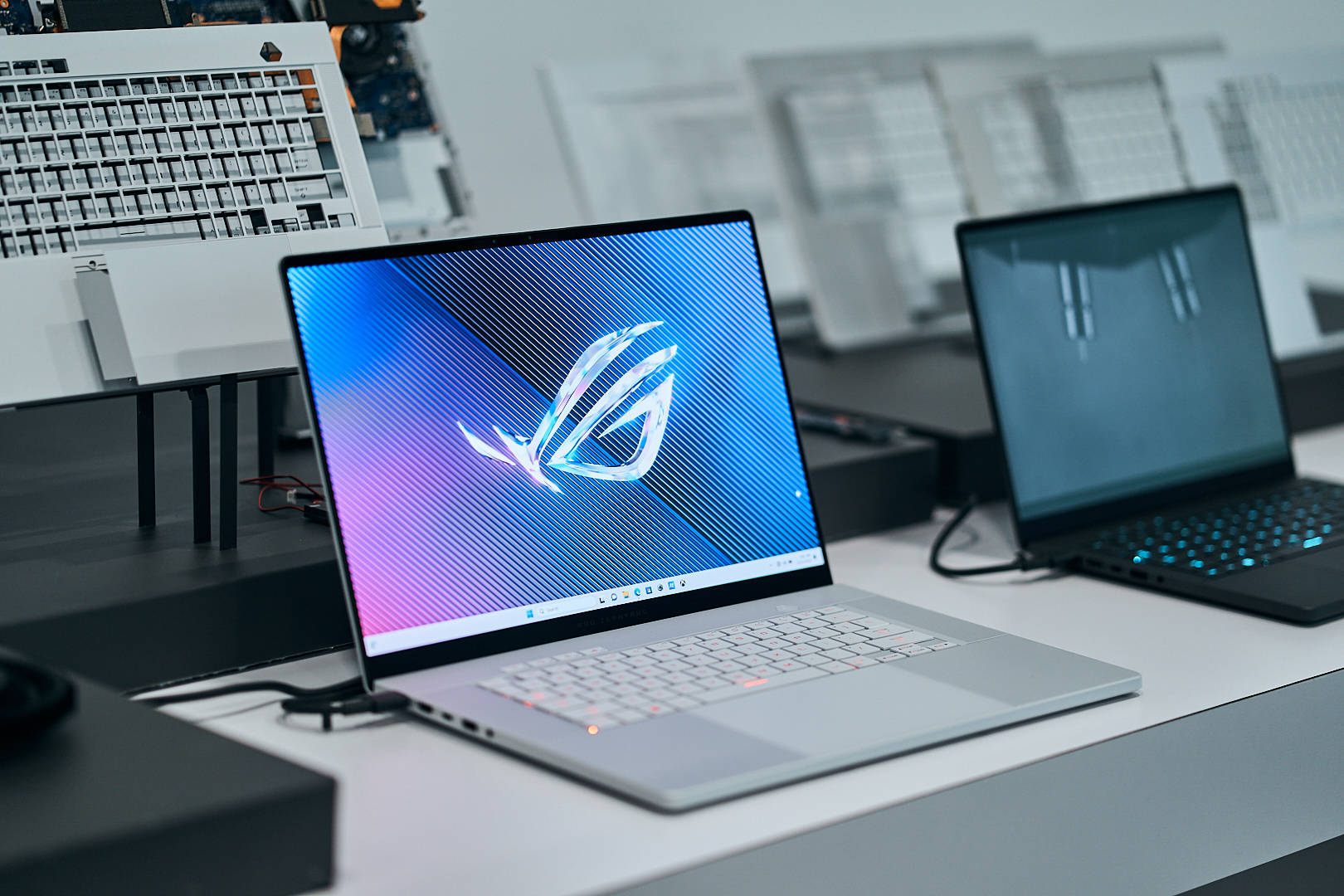
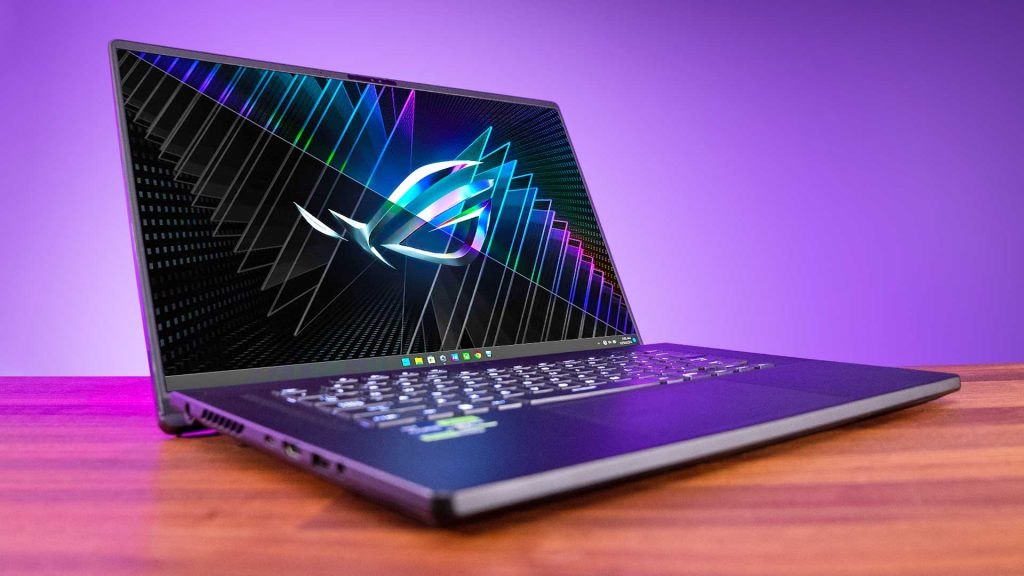
Raid nights expose laptop limits that short dungeon runs hide. Heat builds slowly, and clock speeds drop without warning. A gaming laptop world of warcraft setup needs deliberate tuning to stay smooth past hour three. Graphics settings, addons, power plans, and cooling each play a part. Background apps and battery behavior matter too. Seven targeted adjustments keep frame rates steady through marathon sessions.
1. Cap Frame Rates Through Built-In Settings
Uncapped frames push the GPU beyond what the display shows. World of Warcraft offers a foreground frame limit in its settings. Matching that limit to the refresh rate cuts wasted work. Fewer frames mean less heat and quieter fans. A separate background cap helps during alt-tab breaks. Setting it near 30 cools the GPU between pulls.
2. Trim Graphics Options That Drain Performance
Some settings cost more than their visual payoff. Trimming them first protects smoothness in crowded cities like Valdrakken.
- Ray-traced shadows tax the GPU hard during raids.
- Particle density spikes load in large boss fights.
- View distance strains memory across open zones.
- Render scale above 100 adds little visible sharpness.
- SSAO can drop a notch without obvious loss.
3. Audit Addons Before Every Raid Night
Addons run Lua code constantly in the background. Damage meters, boss timers, and nameplate mods stack up fast. Each one claims memory and processor time. Disabling unused addons from the character screen frees both. Leveling helpers, for example, serve no purpose at max level. Core tools like BigWigs and Details! remain worth keeping.
4. Force the Dedicated GPU to Run the Game
Hybrid graphics laptops switch between two chips to save power. Sometimes the game lands on the weaker integrated chip. Every gaming laptop world of warcraft session belongs on the discrete GPU. Windows Graphics Settings can assign Wow.exe to high performance. NVIDIA and AMD control panels offer the same option. Laptops with a MUX switch go further, bypassing the integrated chip entirely.
5. Keep Cooling Ahead of the Heat
Thermal throttling causes most late-session stutter. Fans alone cannot fight a clogged chassis.
- Raise the rear for airflow.
- Place a cooling pad underneath.
- Clear dust from intake vents.
- Skip soft surfaces like bedding.
- Track temperatures with HWiNFO.
6. Stay Plugged In With Smart Battery Limits
Laptop GPUs run at reduced wattage on battery power. Plugging in restores full performance for raid encounters. Constant charging, though, stresses the battery over months. Most manufacturers offer a charge cap near 80 percent. Lenovo Vantage, ASUS Armoury Crate, and MSI Center include this toggle. Battery health holds up while the charger supplies full power.
7. Close Background Apps That Compete for Power
Discord overlays, browsers, and streaming software all request system resources. Chrome tabs alone can consume several gigabytes of memory. Hardware acceleration in Discord adds GPU load as well. Turning it off frees graphics headroom for the game. Battle.net can close itself once the game launches. Windows Game Mode then prioritizes the WoW process.
Hour Four Reveals the Real Setup
Benchmarks run for minutes, but raids stretch past midnight. A laptop strong at login can throttle by the final boss. The 30-frame background cap and 80 percent charge limit seem minor. Together, these small choices make hour four match hour one. Endurance, not peak speed, defines a capable raiding machine.


